Configuring SSH access between MacBook and Ubuntu in my cybersecurity lab
In this lab, I configured remote SSH access between a MacBook and an Ubuntu machine on the local network. The goal was to practice concepts of IP, ports, SSH service, UFW firewall, and connectivity diagnostics.
This first DetonaDev Cyber Lab documents the configuration of remote access via SSH between a MacBook and an Ubuntu machine connected to the same local network.
The goal was to practice fundamental concepts for cybersecurity and systems administration: IP address, network interface, ports, SSH service, firewall, connectivity, and troubleshooting.
This article documents not only the commands executed but also the reasoning used to understand the problem and reach the solution.
1. Lab objective
The objective of this lab was to allow my MacBook to access an Ubuntu machine on the local network using SSH.
In practice, I wanted to move from this scenario:
MacBook and Ubuntu connected to the same network, but without remote access working
To this scenario:
MacBook ---> SSH ---> Ubuntu Linux
With this, it would be possible to administer Ubuntu remotely through the MacBook terminal.
This type of access is very common in Linux environments, servers, infrastructure, cloud, DevOps, and information security.
2. Environment used
The environment used was simple and local:
Client machine: MacBook Air
Server machine: Ubuntu 24.04.4 LTS
Network: Local Wi-Fi
Ubuntu IP: 192.168.1.78
Ubuntu Wi-Fi interface: wlp3s0
Remote service: OpenSSH Server
Firewall: UFW
Port used by SSH: 22/TCP
Ubuntu was installed on a dedicated machine and connected to the Wi-Fi network by a PCI Express Wi-Fi card.
The MacBook was used as a client machine, that is, the machine that would try to access Ubuntu remotely.
3. Concepts involved
Before executing the commands, it is important to understand the main concepts involved.
IP
The IP address identifies a machine within the network.
In this lab, Ubuntu received the IP:
192.168.1.78
This was the address used by the MacBook to try to find and access the Linux machine on the local network.
Network interface
The network interface is the logical or physical device used for connection.
In Linux, interfaces can appear with names such as:
lo
eno1
wlp3s0
docker0
br-...
veth...
In this lab, the important interface was:
wlp3s0
This was the Wi-Fi interface of the Ubuntu machine.
Port
A port identifies a service within a machine.
Common examples:
22   = SSH
80   = HTTP
443  = HTTPS
8080 = alternative web application
In this lab, the SSH service uses port:
22/TCP
SSH
SSH stands for Secure Shell.
It is a protocol used to access and administer systems remotely in a secure manner. It is widely used to manage Linux servers, access remote machines, and execute commands in infrastructure environments.
When we use this command:
ssh bruno-abreu@192.168.1.78
We are saying:
Connect via SSH to user bruno-abreu on the machine with IP 192.168.1.78
By default, SSH tries to connect on port 22.
Firewall
The firewall controls which connections can enter or leave a machine.
In Ubuntu, I used UFW, which stands for Uncomplicated Firewall.
An important point of this lab was to understand that a service can be active, but still inaccessible if the firewall is blocking the port used by it.
4. Identifying the Ubuntu IP
First, I needed to figure out the IP of the Ubuntu machine on the local network.
On Ubuntu, I executed:
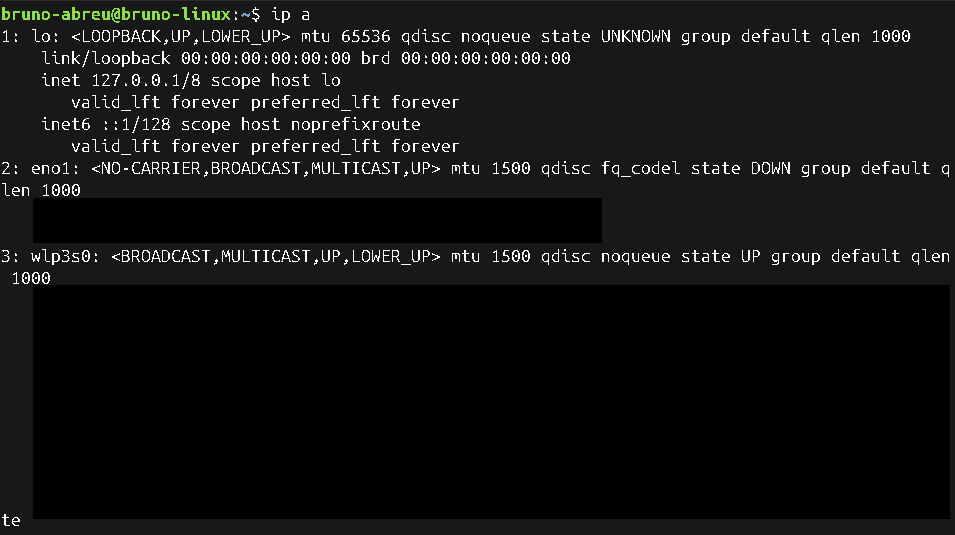
ip a
This command lists the network interfaces and the IP addresses associated with each one.
In the result, the relevant interface was:
wlp3s0
inet 192.168.1.78/24
This indicated that:
Wi-Fi interface: wlp3s0
Ubuntu IP: 192.168.1.78
Local network: 192.168.1.0/24
I also executed:
hostname -I
This command shows the IP addresses assigned to the machine more directly.
The result confirmed the main IP of Ubuntu:
192.168.1.78

The result also showed addresses like:
172.17.0.1
172.18.0.1
172.19.0.1
These IPs were related to internal Docker networks and were not the focus of this lab.
For access via MacBook, the correct IP was:
192.168.1.78
5. Installing and enabling SSH on Ubuntu
For the MacBook to be able to access Ubuntu remotely, the SSH server needed to be installed and running.
On Ubuntu, I executed:
sudo apt update
This command updates the list of available packages.
Then I installed the OpenSSH Server:
sudo apt install openssh-server -y
Next, I enabled the SSH service to start automatically with the system:
sudo systemctl enable ssh
Then I started the service:
sudo systemctl start ssh
To validate if SSH was actually running, I executed:
sudo systemctl status ssh --no-pager
The result showed:
Active: active (running)
Server listening on 0.0.0.0 port 22
Server listening on :: port 22
This confirmed that:
The SSH service was active.
SSH was listening for connections on port 22.
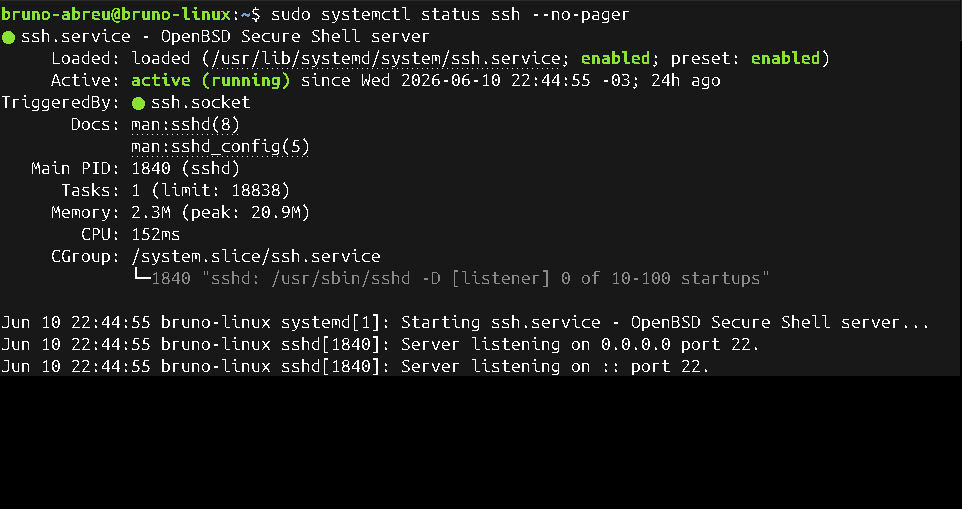
At this point, SSH was working on the Ubuntu machine.
6. Testing SSH locally on Ubuntu
Before testing from the MacBook, I did a local test inside Ubuntu itself.
I executed:
ssh bruno-abreu@localhost
Localhost represents the machine itself.
The system displayed a message about the authenticity of the host:
The authenticity of host 'localhost (127.0.0.1)' can't be established.
Are you sure you want to continue connecting?
I answered:
yes
Then I entered the Ubuntu user password.
The access worked, which showed that the SSH service was accepting connections locally.
This test was important because it separated two possible problems:
If SSH failed locally, the problem would be in the SSH service itself.
Since SSH worked locally, the problem would likely be in the network or the firewall.
7. Checking the UFW firewall before the fix
After confirming that SSH was active, I checked the Ubuntu firewall.
I executed:
sudo ufw status
The result showed:
Status: active

8080                       ALLOW       Anywhere
8080 (v6)                  ALLOW       Anywhere (v6)
This indicated that the UFW firewall was active, but only port 8080 was open.
Port 22, used by SSH, did not appear in the list.

This was an important point in the diagnosis.
SSH was active, but the firewall did not allow external connections on port 22.
8. Testing connectivity from the MacBook
On the MacBook, I first tested if the Ubuntu machine responded on the network.
I executed:
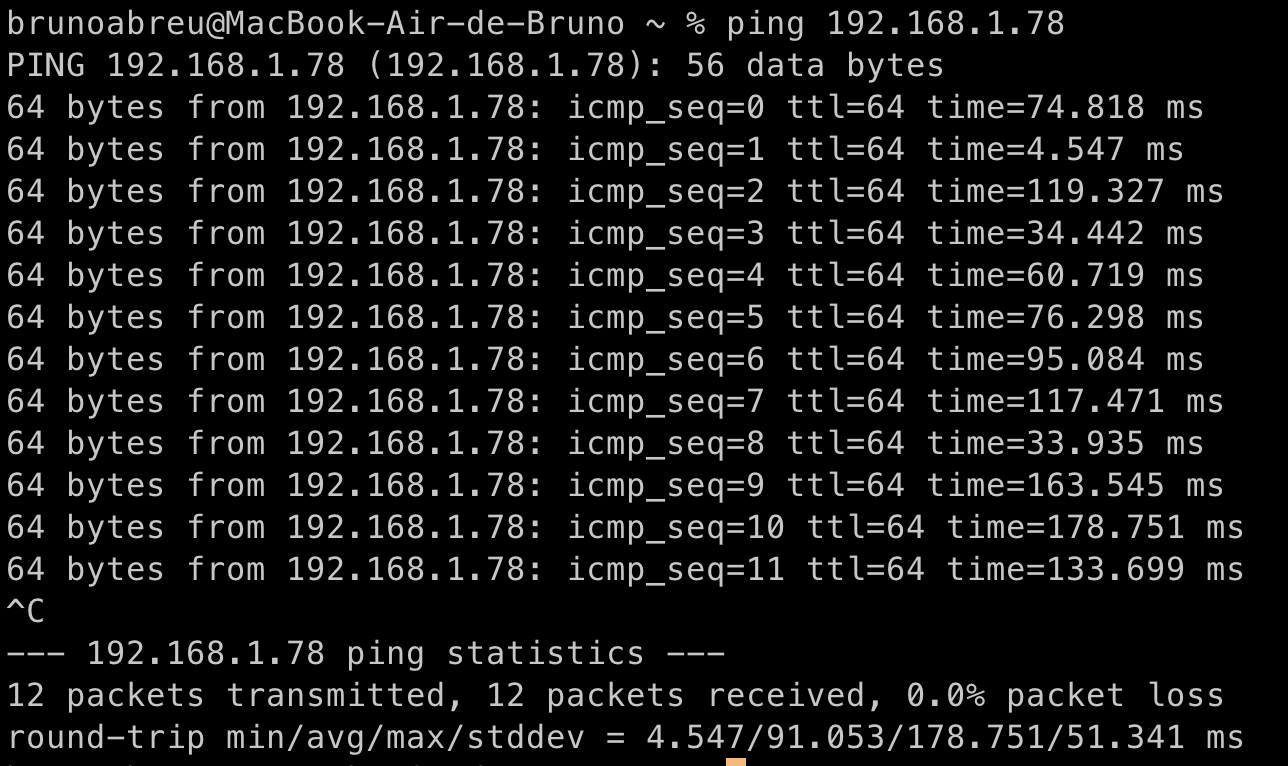
ping 192.168.1.78
The result showed responses from the Ubuntu machine on the network:
64 bytes from 192.168.1.78
at the end of the test, the result indicated:
12 packets transmitted, 12 received, 0.0% packet loss
This showed that the MacBook could reach the Ubuntu IP over the local network, meaning there was connectivity between the two machines.
Then I tried to access via SSH:
ssh bruno-abreu@192.168.1.78
The result was:
ssh: connect to host 192.168.1.78 port 22: Operation timed out

This error showed that the MacBook was trying to access Ubuntu on port 22, but the connection was not completed.
9. Problem found
The problem found was:
Ping worked, but SSH gave a timeout.
This indicated that:
The MacBook could reach the Ubuntu IP.
The SSH service was active on Ubuntu.
But port 22 was not accessible from the network.
In this scenario, a likely cause was the firewall blocking port 22.
The diagnosis began to point to UFW.
10. Diagnosis
The reasoning was as follows:
First, I confirmed that Ubuntu had a valid IP on the local network:
192.168.1.78
Then, I confirmed that the SSH service was active:
Active: active (running)
Server listening on 0.0.0.0 port 22
Next, I confirmed that the MacBook could reach the IP with ping.
Finally, I checked UFW and realized that only port 8080 was open.
So the scenario became clear:
SSH active on port 22
UFW firewall active
Port 22 not open
MacBook trying to connect
Connection expiring with timeout
Conclusion:
The problem was not SSH being turned off.
The problem was the firewall blocking external access to port 22.
11. Solution applied
To resolve this, I needed to open port 22 in the firewall.
But instead of allowing SSH for any source, I applied a more restrictive rule, allowing access only from my local network.
I executed on Ubuntu:
sudo ufw allow from 192.168.1.0/24 to any port 22 proto tcp
This command can be broken down as follows:
sudo                   Runs the command with administrator privileges.
ufw                    Ubuntu firewall tool.
allow                  Creates a rule allowing traffic.
from 192.168.1.0/24    Allows connections coming from the 192.168.1.x local network.
to any port 22         Allows connection to port 22 of this machine.
proto tcp              Defines that the rule is for the TCP protocol.

This approach is better than simply running:
sudo ufw allow ssh
Because the rule used limits SSH access only to local network devices.
That is, access was allowed for the network:
192.168.1.0/24
And not for any source.
12. Validating the rule in the firewall
After creating the rule, I checked the firewall again:
sudo ufw status
Now, the port 22 rule should appear allowing access from the local network.
The expected result was something like:
22/tcp                     ALLOW       192.168.1.0/24
8080                       ALLOW       Anywhere
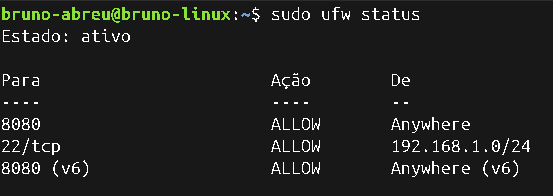
This validation was important because it confirmed that the firewall now allowed SSH connections coming from the local network.
13. Validating SSH access from MacBook
With the firewall adjusted, I tried the connection again from the MacBook:
ssh bruno-abreu@192.168.1.78
This time, the terminal showed the host authenticity message:
The authenticity of host '192.168.1.78' can't be established.
Are you sure you want to continue connecting?
I answered:
yes
Then I entered the Ubuntu user password.
The connection worked and the terminal displayed:
Welcome to Ubuntu 24.04.4 LTS
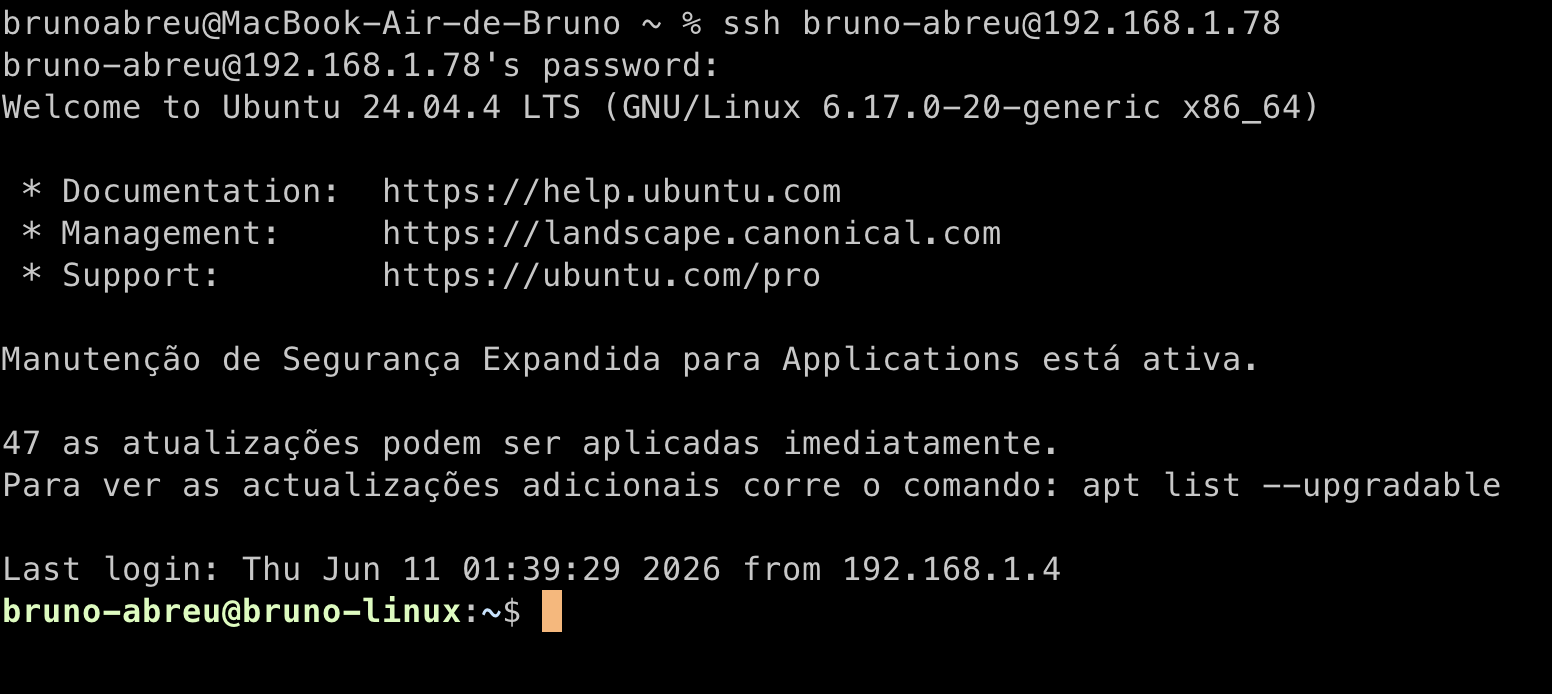
This confirmed that the MacBook was able to access Ubuntu via SSH over the local network.
The final scenario looked like this:
MacBook
  |
  | SSH through port 22/TCP
  | Wi-Fi local network
  |
  ↓
Ubuntu Linux - 192.168.1.78
14. What I learned
In this lab, I practiced and understood the following points:
How to identify the IP of a Linux machine.
How to differentiate the real Wi-Fi interface from internal Docker interfaces.
How to install and enable the OpenSSH Server.
How to check if a service is active with systemctl.
How to test connectivity with ping.
How to interpret a timeout error in SSH.
How to check UFW firewall rules.
How to allow SSH only for the local network.
How to validate remote access from a MacBook to an Ubuntu.
The main lesson was:
A service can be active, but still inaccessible
if the firewall is blocking the port.
In this case, SSH was active and listening on port 22, but UFW did not allow external connections on that port.
15. Relationship with cybersecurity and SOC
This lab connects directly with cybersecurity fundamentals.
A security analyst needs to understand concepts such as:
IP
Ports
Protocols
Services
Firewall
Connectivity
Logs
Remote access
Exposure surface
Network diagnostics
In real environments, similar problems can happen with servers, workstations, firewalls, network rules, and internal services.
In addition, in SOC, it is common to investigate events related to:
Login attempts
Remote access
Authentication failures
Connection origin
Exposed ports
Services accessible on the network
This lab was a first step to understand how a remote connection works, how a firewall can block a service, and how to technically validate a fix.
16. Next step
The next step will be to analyze the logs generated by this SSH connection.
The main question for the next lab will be:
When someone accesses my Linux via SSH, where is that event recorded?
This will lead to the next DetonaDev Cyber Lab study:
Analyzing SSH authentication logs in Linux