Analyzing SSH authentication logs in Linux
In this lab, I analyzed SSH authentication logs on Ubuntu using journalctl, identifying successful logins, session opening and closing, failed password attempts, and connection source IPs.
This DetonaDev Cyber Lab documents the analysis of SSH authentication logs on an Ubuntu machine.
After configuring SSH access between the MacBook and Ubuntu in the previous lab, the next step was to understand where these accesses are recorded in Linux and how to interpret authentication events.
The goal was to practice important concepts for cybersecurity, Linux administration, and SOC: logs, authentication, session, successful login, password failure, source IP, user, and event analysis.
This article documents not only the commands executed but also the reasoning used to understand the records generated by the SSH service.
1. Lab objective
The objective of this lab was to analyze the logs generated by SSH connections on an Ubuntu machine.
In the previous lab, remote access via SSH was successfully configured between a MacBook and an Ubuntu machine on the local network.
Now, the main question was:
When someone accesses my Linux via SSH, where is that event recorded?
From this question, the goal was to observe events such as:
- Active SSH service
- Successful SSH login
- Session opened
- Session closed
- Login attempt with an incorrect password
- Connection source IP
- User used in the access
This type of analysis is important because, in cybersecurity, it is not enough to allow or block access. It is also necessary to understand what happened, when it happened, where it came from, and what the result was.
2. Environment used
The environment used was the same as the previous lab:
Client machine: MacBook Air
Server machine: Ubuntu 24.04.4 LTS
Network: Local Wi-Fi
Ubuntu IP: 192.168.1.78
MacBook IP: 192.168.1.4
Service analyzed: OpenSSH Server
Process analyzed: sshd
Log tool: journalctl
Port used by SSH: 22/TCP
Ubuntu worked as the SSH server.
The MacBook was used as a client to generate successful connections and authentication attempts with an incorrect password.
3. Concepts involved
Before analyzing the logs, it is important to understand the main concepts involved.
SSH
SSH stands for Secure Shell.
It is a protocol used to securely access and administer systems remotely.
In Linux environments, SSH is widely used to:
- Administer servers
- Access remote machines
- Execute commands remotely
- Maintain systems
- Manage infrastructure environments
Therefore, SSH events are important for security.
When someone accesses a server via SSH, that access needs to be recorded.
sshd
sshd is the SSH server process in Linux.
It is responsible for accepting SSH connections, validating authentication, and starting sessions for authenticated users.
The name sshd means:
SSH daemon
In Linux, a daemon is a process that runs in the background.
In this lab, authentication events were generated by the process:
sshd
Logs
Logs are records of events generated by systems, applications, and services.
In security, logs help answer questions such as:
- Who accessed?
- When did they access?
- Where did the access come from?
- Which user was used?
- Did authentication succeed or fail?
- Was the session opened?
- Was the session closed?
Without logs, it is very difficult to investigate problems or incidents.
journalctl
journalctl is the tool used to query logs recorded by systemd in Linux.
In this lab, I used journalctl to view SSH events.
Example:
sudo journalctl -t sshd
This command shows records related to the sshd process.
Accepted login
An accepted login indicates that authentication worked.
In the logs, this appears as:
Accepted password
This message means the user entered a valid password and access was granted.
Authentication failure
An authentication failure indicates that the login attempt was not accepted.
In the logs, this might appear as:
Failed password
This type of event could just be a mistyped password, but it could also indicate an unauthorized access attempt or brute force.
Session opened and session closed
After a login is accepted, the system opens a session for the user.
In the logs, this appears as:
session opened
When the user exits the SSH connection, it appears:
session closed
These events help to understand the complete cycle of a connection.
4. Checking if the SSH service was active
Before analyzing the logs, I confirmed that the SSH service was active on Ubuntu.
I executed:
sudo systemctl status ssh --no-pager
This command shows the status of the SSH service.
In the result, it was possible to see:
Active: active (running)
This indicates that the SSH service was running.
It also showed:
Server listening on 0.0.0.0 port 22
Server listening on :: port 22
This shows that SSH was listening for connections on port 22.
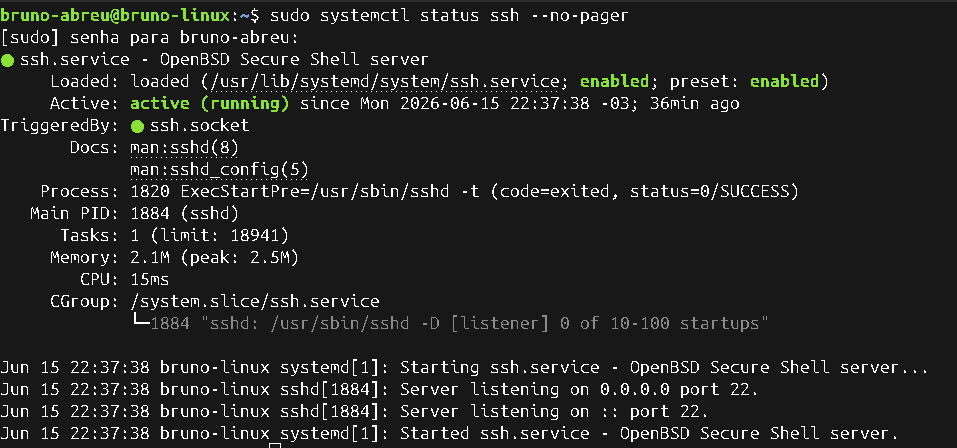
This step was important because it confirmed that there was an active SSH service to generate authentication events.
5. Monitoring SSH logs in real time
After confirming that SSH was active, I used journalctl to monitor SSH events in real time.
I executed on Ubuntu:
sudo journalctl -f -t sshd
This command can be broken down as follows:
sudo          Runs the command with administrative privileges.
journalctl    Tool to view systemd logs.
-f            Follows new events in real time.
-t sshd       Filters logs generated by the sshd process.
The -f option is important because it allows you to observe new events as they happen.
In practice, this command left the terminal waiting for new SSH records.
6. Generating a successful SSH login
With the Ubuntu terminal monitoring the logs in real time, I used the MacBook to connect to Ubuntu via SSH.
On the MacBook, I executed:
ssh bruno-abreu@192.168.1.78
This command means:
Connect via SSH to user bruno-abreu on machine 192.168.1.78
After entering the correct password, the login was accepted.
On Ubuntu, the log recorded:
Accepted password for bruno-abreu from 192.168.1.4 port 53539 ssh2
This line contains important information:
Accepted password       Login accepted using a password.
bruno-abreu             Authenticated user.
192.168.1.4             Connection source IP.
port 53539              Temporary port used by the client.
ssh2                    SSH protocol version.
This event shows that Ubuntu recorded the successful login, including user and source IP.
7. Identifying session opening
In addition to the accepted login, the system also recorded the session opening.
The log showed:
pam_unix(sshd:session): session opened for user bruno-abreu
This event indicates that, after authentication, the system opened a session for the user.
It is important to understand the difference:
Accepted password = the password was accepted.
session opened = the user's session was started.

In a security investigation, this difference helps confirm that authentication passed and a real session was created on the system.
8. Identifying session closing
After testing the SSH access, I closed the session from the MacBook.
In the SSH session terminal, I executed:
exit
Upon exiting, Ubuntu recorded disconnection and session closing events.
In the logs appeared:
Disconnected from user bruno-abreu 192.168.1.4 port 53539
And also:
session closed for user bruno-abreu
This showed that the SSH connection was properly closed.

With this, it was possible to observe the complete cycle of an SSH connection:
- Connection started
- Password accepted
- Session opened
- User exited
- Session closed
- Connection finished
9. Generating a failed password attempt
To understand how an authentication failure appears in the logs, I made a new SSH connection attempt from the MacBook, but entered an incorrect password.
On the MacBook, I executed again:
ssh bruno-abreu@192.168.1.78
When the terminal asked for the password, I entered a wrong password.
On Ubuntu, the event was recorded like this:
Failed password for bruno-abreu from 192.168.1.4 port 53541 ssh2
This line indicates that there was an authentication attempt, but the password was not accepted.
The reading of the event is:
Failed password        Incorrect password.
bruno-abreu            User used in the attempt.
192.168.1.4            Source IP of the attempt.
port 53541             Temporary port used by the client.
ssh2                   SSH protocol used.
This event is very important for security.

A single failure could just be a typo. However, multiple consecutive failures can indicate:
- Brute force attempt
- Unauthorized access attempt
- Use of incorrect credentials
- User enumeration
- Suspicious activity against the server
10. Creating a summary of authentication events
After generating the events, I used a command to filter only the most important records.
I executed:
sudo journalctl -t sshd --no-pager | grep -E "Accepted|Failed|session opened|session closed"
This command combines two parts.
The first part queries the sshd logs:
sudo journalctl -t sshd --no-pager
The second part filters relevant events:
grep -E "Accepted|Failed|session opened|session closed"
The filter searches for:
Accepted          Login accepted.
Failed            Login failed.
session opened    Session opened.
session closed    Session closed.
The result showed the main events of the lab:
Accepted password
session opened
session closed
Failed password

This summary makes analysis easier because it removes less important records and highlights the events directly related to authentication.
11. Problem found
At first, when trying to view old SSH logs, only service startup events appeared.
The command:
sudo journalctl -u ssh --no-pager
showed records like:
Starting ssh.service
Server listening on 0.0.0.0 port 22
Started ssh.service
But there were no login, failure, or session events.
This happened because a new authentication event had not yet been generated at that moment.
The solution was to generate events manually:
- Correct login via MacBook
- Exit SSH session
- Attempt with incorrect password
After that, the logs started showing the events relevant to the analysis.
12. Diagnosis
The diagnosis was that the SSH service was working and correctly recording authentication events.
It was possible to confirm:
- The SSH service was active.
- The server was listening on port 22.
- The correct login was recorded as Accepted password.
- The session opening was recorded as session opened.
- The closing was recorded as session closed.
- The attempt with an incorrect password was recorded as Failed password.
- The source IP was recorded in the events.
This shows that Ubuntu was generating useful logs for security analysis.
13. Solution applied
In this lab, there was no configuration error to fix.
The solution was to use the right tool to view the right events.
The most useful command to follow events in real time was:
sudo journalctl -f -t sshd
The most useful command to summarize important events was:
sudo journalctl -t sshd --no-pager | grep -E "Accepted|Failed|session opened|session closed"
With these commands, I was able to separate relevant authentication events from the other SSH service records.
14. Validation
Validation was done by observing the logs generated after real actions.
First, I performed a correct login via the MacBook.
Ubuntu recorded:
Accepted password
session opened
Then, I closed the session.
Ubuntu recorded:
session closed
Finally, I made an attempt with an incorrect password.
Ubuntu recorded:
Failed password
These records validated that the system was correctly capturing SSH authentication events.
15. What I learned
In this lab, I learned that SSH authentication logs are fundamental to understanding accesses to a Linux machine.
I also learned that an SSH event can have several stages:
- Connection attempt
- Authentication
- Session opened
- Session closed
- Password failure
In addition, I understood that logs show important information for investigation:
- User used
- Source IP
- Client's temporary port
- Authentication result
- Event time
- Session state
The main lesson was:
In security, it is not enough to know that access works.
It is necessary to know how access is recorded and how to interpret those records.
16. Relationship with cybersecurity and SOC
This lab connects directly with cybersecurity, especially with SOC and Security Operations.
In a real environment, security analysts monitor logs to identify suspicious behavior.
SSH events can indicate:
- Legitimate administrative access
- Incorrect password attempt
- Brute force
- Access outside expected hours
- Unknown connection source
- Unauthorized account use
- Lateral movement attempt
- Credential compromise
A SOC analyst needs to look at logs and ask questions like:
- Should this user access this server?
- Is this source IP known?
- Were there many failures before a successful login?
- Did the access occur during normal hours?
- Does this account usually access this server?
- How long did the session last?
Even though it is a simple lab on a local network, the reasoning is the same used in corporate environments:
- Collect events
- Filter relevant records
- Identify success and failure
- Analyze source and user
- Document evidence
- Relate logs to security risk
This lab was an important step to move from remote access configuration to event analysis, which is an essential foundation for SOC.
17. Next step
The next step will be to analyze exposed ports and services using Nmap.
After understanding that SSH is active and that its accesses are recorded in logs, it makes sense to check how the Ubuntu machine appears to another device on the network.
The main question for the next lab will be:
Which ports and services are visible on my Ubuntu machine within the local network?
This will lead to the next DetonaDev Cyber Lab study:
Using Nmap to identify open ports in a lab environment